activitypub_fetcher @activitypub_fetcher · activity timestamp 3 yr. ago Danke Steve. ™ #privacy Read more Read less Translate Translate alt Turn on Anti-Tracking URLs in iOS 17 can be stripped of all tracking information appended to the end of the URL so that websites cannot track your browsing using URL identifiers. This function is enabled automatically for private browsing in iOS 17, but it can be turned on for all browsing. In the Settings app go to Safari. Tap on Advanced, then tap on "Advanced Tracking and Fingerprinting Protection." From there, toggle on "All Browsing." Turn on Anti-Tracking URLs in iOS 17 can be stripped of all tracking information appended to the end of the URL so that websites cannot track your browsing using URL identifiers. This function is enabled automatically for private browsing in iOS 17, but it can be turned on for all browsing. In the Settings app go to Safari. Tap on Advanced, then tap on "Advanced Tracking and Fingerprinting Protection." From there, toggle on "All Browsing." #privacy Reply Boost Quote Like More actions Copy link Flag this post Block
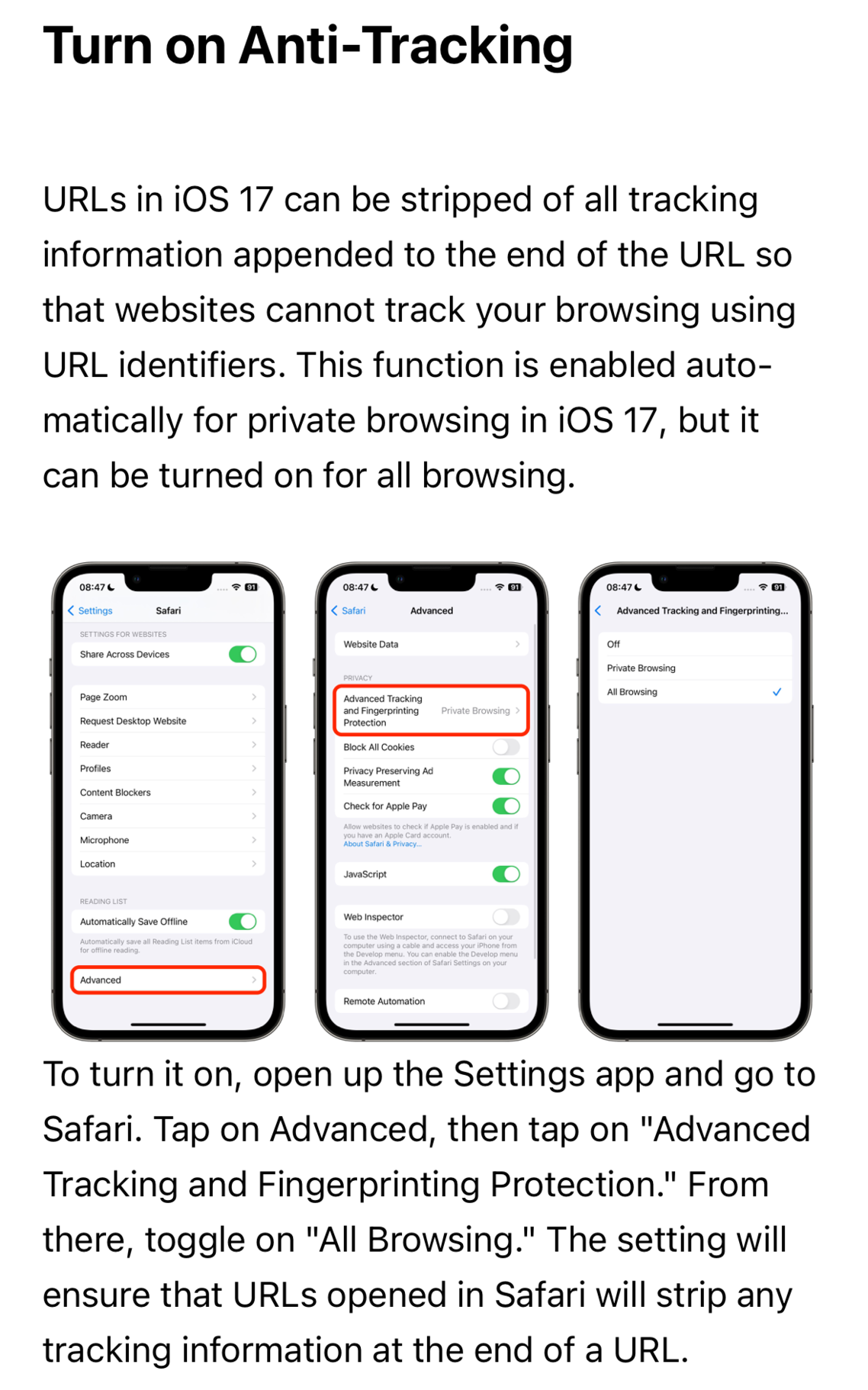
alt Turn on Anti-Tracking URLs in iOS 17 can be stripped of all tracking information appended to the end of the URL so that websites cannot track your browsing using URL identifiers. This function is enabled automatically for private browsing in iOS 17, but it can be turned on for all browsing. In the Settings app go to Safari. Tap on Advanced, then tap on "Advanced Tracking and Fingerprinting Protection." From there, toggle on "All Browsing." Turn on Anti-Tracking URLs in iOS 17 can be stripped of all tracking information appended to the end of the URL so that websites cannot track your browsing using URL identifiers. This function is enabled automatically for private browsing in iOS 17, but it can be turned on for all browsing. In the Settings app go to Safari. Tap on Advanced, then tap on "Advanced Tracking and Fingerprinting Protection." From there, toggle on "All Browsing."